Ozil Goal AI photo requirements
Use one clear photo of a consenting adult, with the face and outfit visible. Choose JPG, PNG or WebP up to 10 MB, at least 256 pixels on each side and no more than 8 megapixels in total. Check the photo before buying credits.
By Ozil Goal AI, an independent developer project. Published and reviewed . Report a correction.
01 / PHOTO GUIDE
Give the model a clear reference.
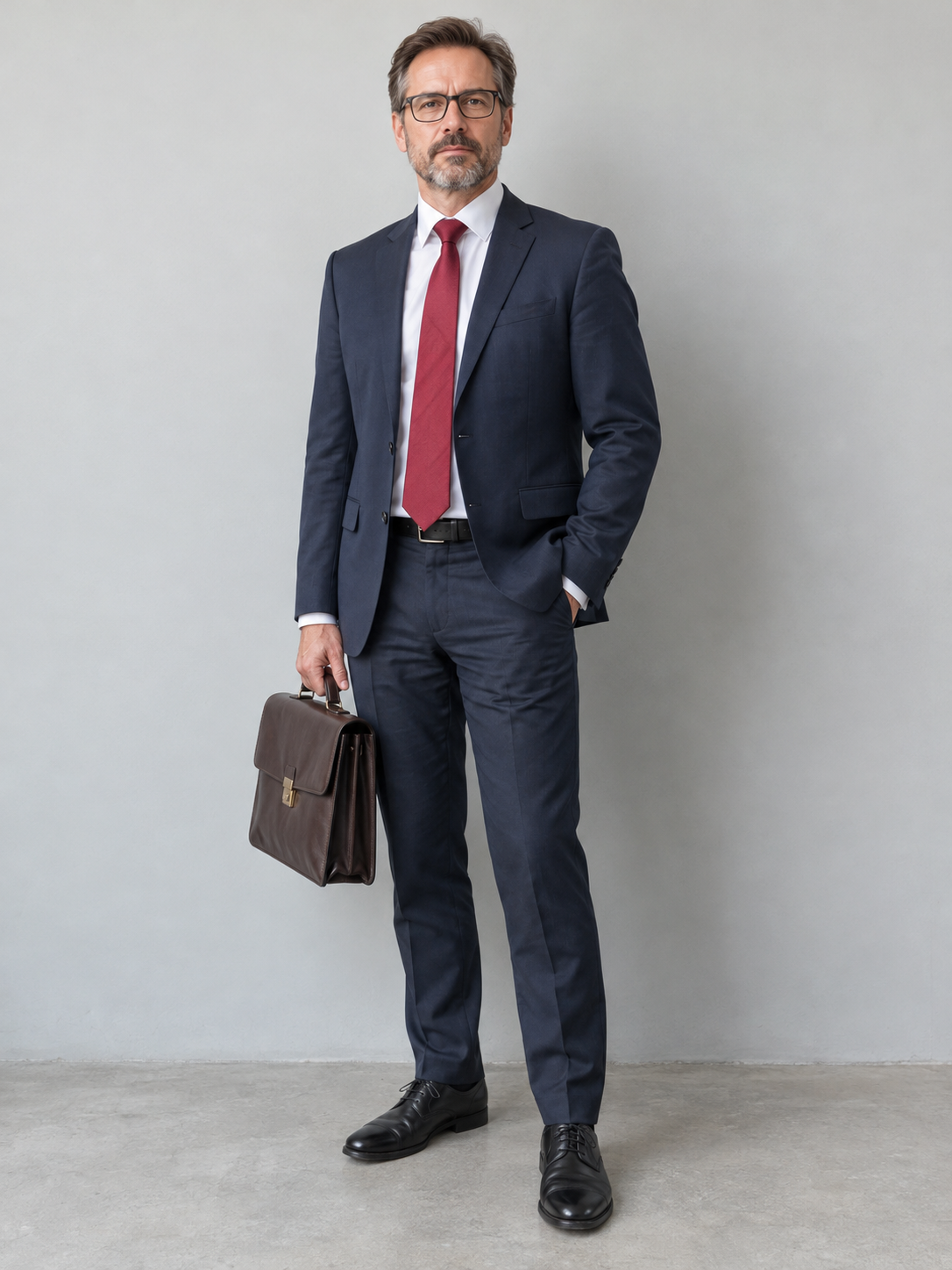
Choose one consenting adult, with a clear face, good light and a visible outfit. An upper-body or full-body portrait gives more context than a tight face crop. These examples use the same synthetic adult photo as the public sample. The altered views illustrate common input problems, not tested output comparisons.
Exact file limits
- JPG, PNG or WebP, up to 10 MB.
- At least 256 pixels on each side.
- No more than 8,000,000 pixels in total.
A 4000 × 3000 phone photo is 12 megapixels and fails the pixel limit even if the file is under 10 MB. Resize it, for example to 2000 × 1500, before choosing it again.
What the local check means
A short side below 720 pixels or a landscape orientation produces a warning. Neither is a promise about the result. The browser checks file type, dimensions and size; it does not detect faces, verify age or predict video quality.
Confirm adult status and permission yourself. Safety review happens separately after submission. Read how providers handle submitted content.
How should I frame the face and outfit?
Choose a well-lit portrait where the face is easy to see. A full-body or upper-body image gives the model more information about clothes and proportions than a tight headshot. Use one person rather than a group photo, so the intended main character is clear.
Avoid blur, heavy filters, deep shadows and objects covering the face. Glasses appear in our existing sample, but that single result does not establish that every pair of glasses or face will render well. Sunglasses and masks give the model less visible facial reference.
Clothing creates the contrast in the scene. Our public sample uses a synthetic adult office worker in a navy suit, red tie and glasses. Chef whites or a wedding outfit are possible photo ideas, not tested output examples. Clothing details, fabric and accessories may change during generation. Do not expect text or logos on clothing to remain readable.
Why was my photo rejected or flagged?
File size and pixel count are separate limits. A small compressed file can still exceed 8 megapixels. For example, 4000 × 3000 is 12 megapixels; resizing a copy to 2000 × 1500 reduces it to 3 megapixels. Keep the proportions instead of stretching the photo.
- Export a copy as JPG, PNG or WebP. Renaming the extension alone does not convert the file.
- Check that it is at most 10 MB, at least 256 pixels on both sides and at most 8,000,000 pixels overall.
- Keep the face and outfit in frame when cropping or resizing.
- Select the revised copy on Create and read the local result before submitting.
A short side below 720 pixels or a landscape photo produces a preparation warning. A warning is different from a file rejection. Passing the local checks means the file meets those checks; it does not verify age, consent, face detection or video quality.
When is my photo uploaded?
Selecting a photo keeps it in the current page. It is uploaded when you confirm generation, with sign-in, permission checks and sufficient credits required. Refreshing before submission can discard the local selection. Do not include a passport, payment card, private document or unnecessary personal information in the image.
Only use a photo you have permission to submit and an adult who has agreed to be depicted. Read the privacy and usage guide for provider processing and retention. Then follow the full walkthrough. A credit purchase alone never starts a video.